 look news india
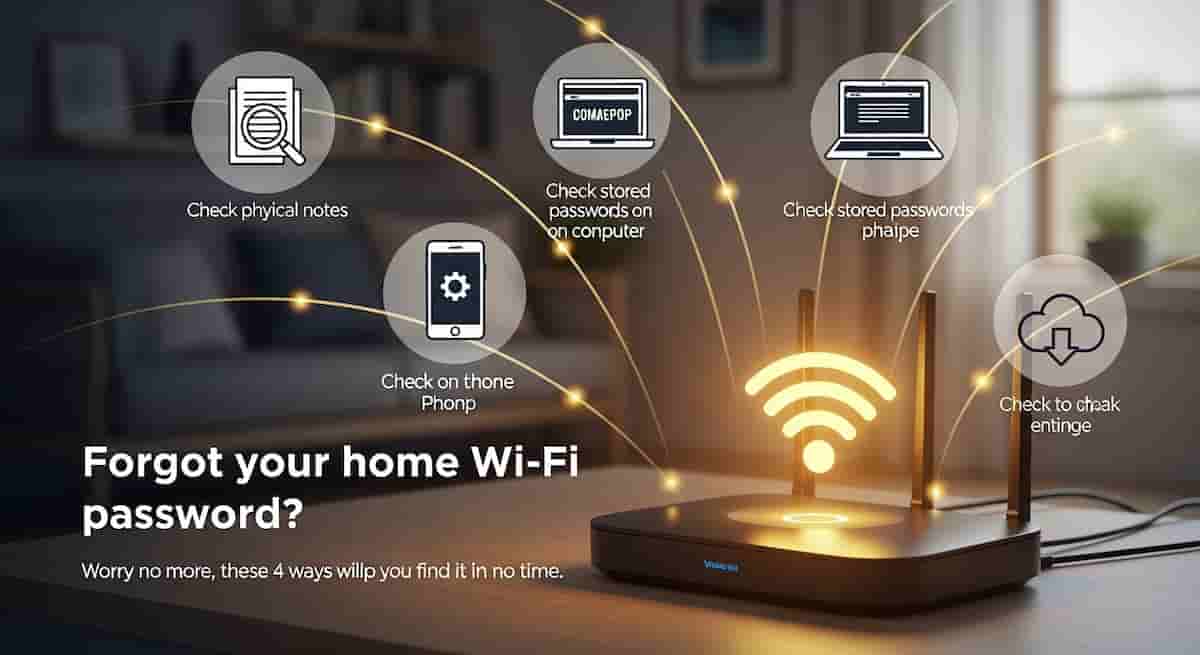
News India Live, Digital Desk: In today’s era, Wi-Fi has become an important part of our lives. From home to office, we need internet for every work. But many times it happens that we forget our own Wi-Fi password. Either we have kept the password very difficult or it has been set by someone else which we do not remember. In such a situation, when a guest comes to the house and asks for the password, a very awkward situation arises.
If this has happened to you too, there is no need to panic. You don’t need to reset the router or call a technician. We are going to tell you 4 such easy methods, with the help of which you can find out your forgotten Wi-Fi password in minutes.
Method 1: If your laptop is already connected (Windows)
This is the easiest method, provided your laptop or computer is already connected to the Wi-Fi network whose password you want to know.
- Go to the search bar of your Windows laptop and type “Control Panel” and open it.
- Now click on “Network and Internet” and then go to “Network and Sharing Center”.
- Here you will see the name (SSID) of your Wi-Fi, click on it.
- A small window will open, click on “Wireless Properties” in it.
- Now another window will open. In this, click on the “Security” tab at the top.
- Here you’ll see the password below “Network security key”, but it will be in dots (••••). You will see your password as soon as you tick the “Show characters” box below it.
Method 2: The secret behind the router
If none of your devices are connected, this is the second easiest method. There is a sticker on the back of every Wi-Fi router, on which the default username and password given by the company is written.
- Pick up your router and look at the back or bottom of it.
- There you will find “SSID” (the name of the Wi-Fi) and “Password” or “Wireless Key”.
- If you have never changed the password since purchasing the router, this is your password.
Method 3: Find out from the router’s settings
If you have changed the password and no device is connected, you can find out the password by going to the router’s settings.
- First of all, connect any device directly to the router with the help of LAN cable.
- Now open any web browser (like Chrome, Firefox) on your computer.
- in the address bar 192.168.1.1 Or 192.168.0.1 Type and press enter. (This is the router’s IP address, usually written on the back of the router).
- Now you will be asked for username and password. This is also written on the back of the router (usually the username admin and password too admin Or password It happens).
- After logging in, the router’s settings will open. Here go to “Wireless” or “WLAN” settings.
- Now click on “Wireless Security” or “Security” tab. Here you will see your Wi-Fi password.
Method 4: Locate from Mobile Phone (Android 10 and above)
If your Android phone is connected to Wi-Fi, you can know the password from it also.
- of your phone Settings go in and Wi-Fi & Network Click on.
- Tap the name of the Wi-Fi you’re connected to or click the gear (⚙️) icon next to it.
- here you share Option will appear. Tap on it.
- The phone will ask you for your fingerprint or PIN. Once verified, a QR code will appear on the screen and the Wi-Fi password will also be written just below it.
So next time whenever you forget your password, instead of worrying, try these easy methods.