 look news india

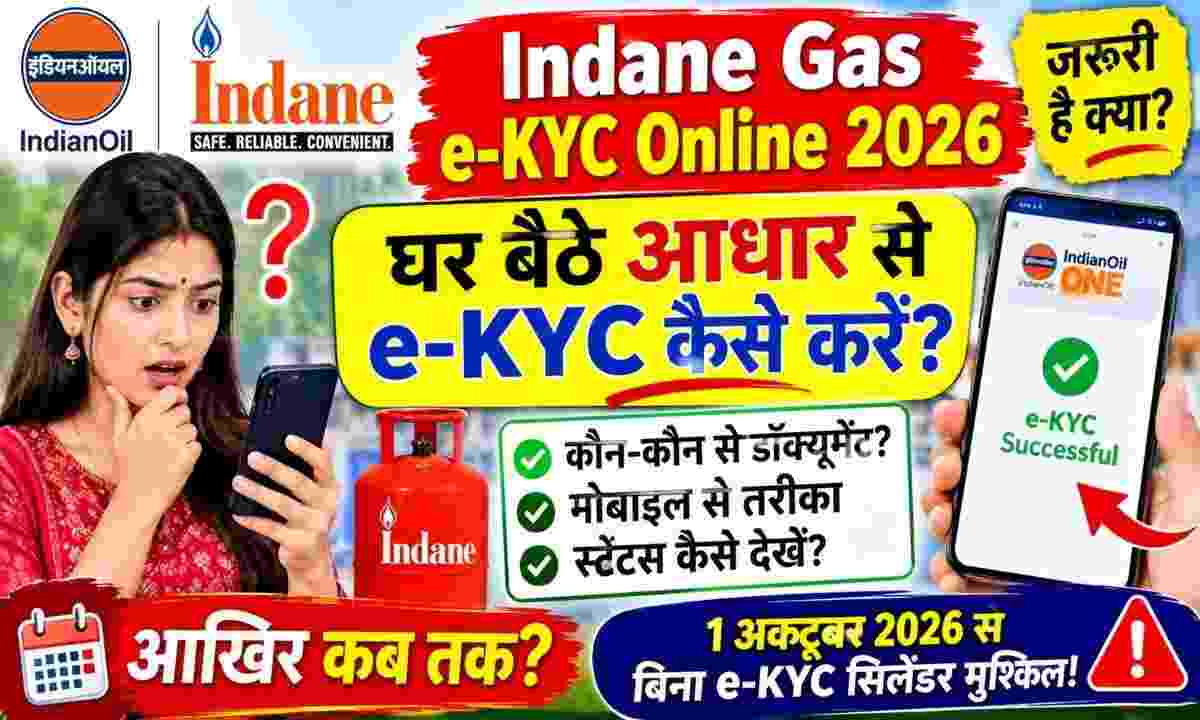
The Ministry of Petroleum and Natural Gas and Oil Marketing Companies (OMCs) have mandated Aadhaar biometric e-KYC to prevent misuse of domestic LPG cylinders, weed out fake or dual gas connections and deliver gas subsidy under Direct Benefit Transfer (DBT) directly to genuine beneficiaries. If a consumer’s e-KYC remains incomplete, there is a risk of interruption in subsidy transfer or booking at non-subsidized rates.
Lakhs of Indane (Indian Oil) consumers no longer need to stand in long queues for hours at gas agency offices. Consumers can complete this process sitting at home in a few minutes with the help of their smartphone’s front camera and Aadhaar face recognition technology.
Before starting the process, make sure you have the following essentials ready:
-
Two mobile apps: Official from Google Play Store or App Store IndianOil ONE App and UIDAI official Aadhaar FaceRD (Early Access) The app must be installed.
-
Appearance of connection holder: Face scanning will be done only for the person in whose name the Indane Gas connection is registered. This verification cannot be done from the face of any other family member.
-
Identification Details: Aadhar card linked to gas connection and 16 digit consumer LPG ID (which is printed on the gas passbook or cash memo slip).
-
Active Mobile Number: The mobile number linked to the LPG connection must be active so that login and OTP verification can be seamless.
-
Camera and Internet: Smartphone with front camera, stable internet connection and adequate lighting on the face.
The step by step procedure to complete face authentication based e-KYC through smartphone is as follows:
-
First of all in your mobile IndianOil ONE app and Aadhaar FaceRD Download and install the app (Note: The FaceRD app works as a background service, it doesn’t open as its own icon on the home screen).
-
Open the IndianOil ONE app. If you are a first time user, click on ‘New User? Complete the registration by clicking on ‘Sign Up’ with your registered mobile number and email; If you already have an account, login.
-
After login tap on the hamburger menu (three lines) on the top left side of the home screen and ‘My Profile’ Go to section.
-
in profile page ‘LPG Details’ Or ‘Indian Details’ Select the option.
-
Your consumer ID and name of the delivery agency will appear on the screen. here you ‘Re-KYC’ Or ‘e-KYC’ Option will appear, click on it.
-
Consent box for terms and conditions will appear on the screen, tick the checkbox and ‘Face Auth’ Tap the button.
-
The app will ask you for permission to access the camera, ‘Allow’ it. After this the base FaceRD camera interface will automatically start.
-
Keep your face straight in the frame of the mobile screen. When the circle turns green, blink your eyes once as directed.
-
Once the face is successfully scanned, the data will match with the UIDAI server and will be displayed on the screen. “e-KYC Completed Successfully” Or the message of reference number will come.
After verification if you want to see if your process has been approved:
-
Open IndianOil ONE app again ‘My Profile’ got into.
-
If in front of ‘KYC Status’ ‘Confirmed’ Or green tick mark is visible, then your e-KYC has been completed.
-
In case of no face scan: If an error occurs in the FaceRD app, sit in a well-lit place, do not allow shadows to fall on the face, and remove the glasses and try again. Make sure that your biometrics are not already ‘locked’ in the mAadhaar app; If locked, unlock them first.
-
Offline Option: Those elderly people whose facial recognition in the cameras is repeatedly failing or who do not have a smartphone, can go to their gas agency and get e-KYC done through a biometric fingerprint scanner, or can also get this verification done through the POS machine available with the delivery agent at the time of home delivery of the cylinder. Never share your OTP with any unknown person or fake call/link.